Feature
Bulk Export Klaviyo Campaigns to PNG or PDF (ZIP)
Previyo adds bulk export to Klaviyo's campaign list. Tick the campaigns you need, click Export in the black bulk-actions bar, and Previyo saves one ZIP with a full-length PNG, JPG, PDF or HTML file for each email, named after the campaign. It works for flows too, and runs entirely in your browser.
Select campaigns, click Export, get one ZIP
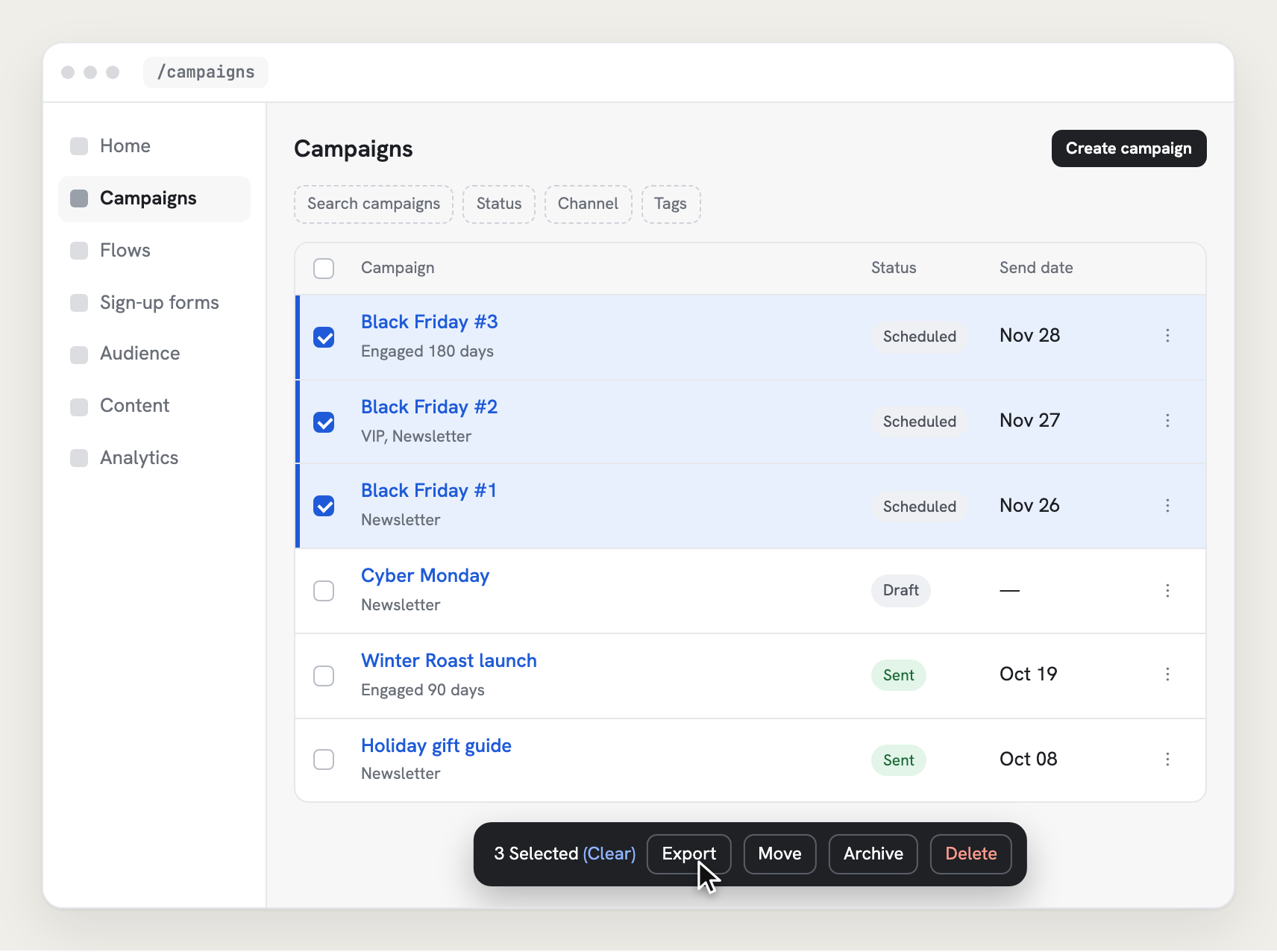
- Open Campaigns in Klaviyo.
- Tick the checkboxes next to the campaigns you want.
- Click Export in the black bulk-actions bar that appears.
- Choose the format (PNG, JPG, PDF or HTML), width (Desktop 600, Mobile 375 or Both) and scale (1×, 2× or 3×). Add the padded frame if the files are for a portfolio.
- Click Export. A progress panel shows which email is rendering; the ZIP saves when the last one is done.
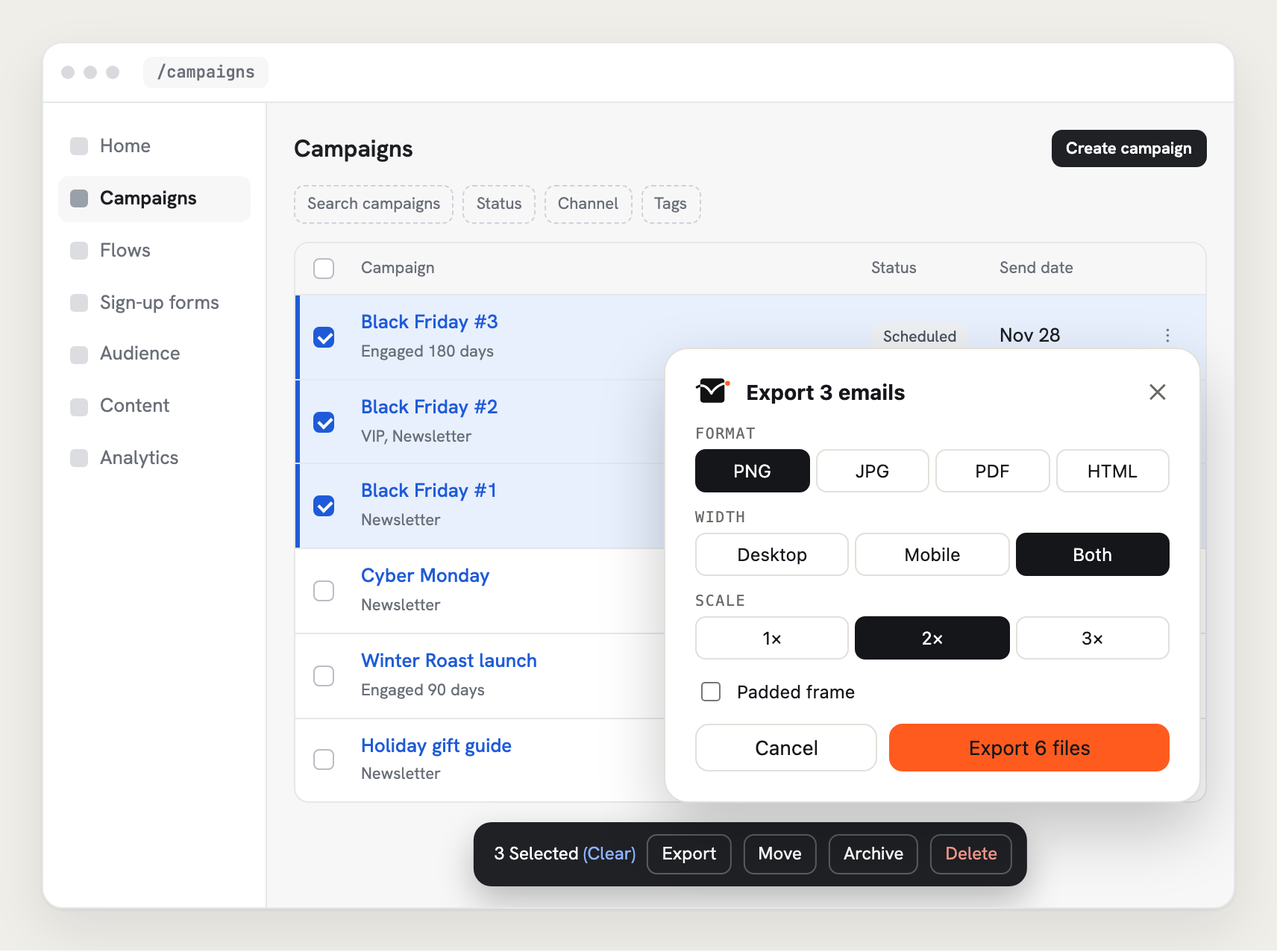
Previyo opens each campaign's web view in the background, reads the email from it and renders it at the width you chose. You don't have to open the campaigns one by one.
What's in the ZIP: file names, formats, sizes
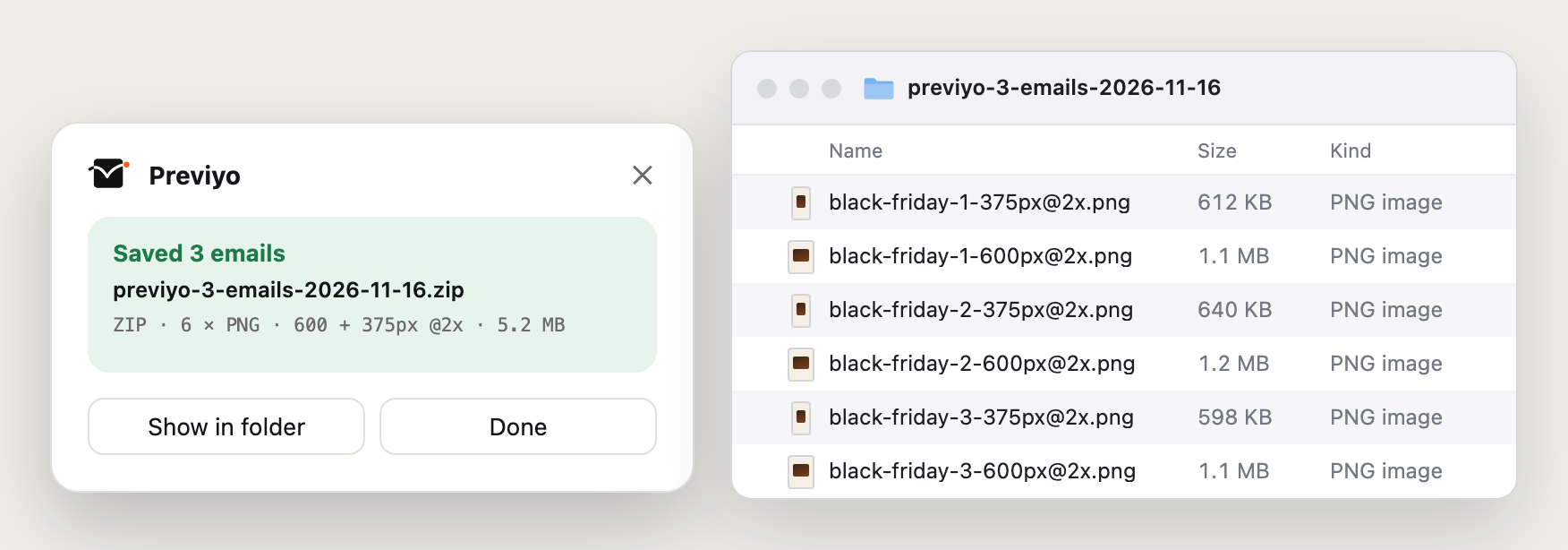
- One file per email per width. Choose Both and each campaign gives you a
-600pxand a-375pxfile. - Named after the campaign, for example
black-friday-3-600px@2x.pngandblack-friday-3-375px@2x.png. Duplicate names get a suffix so nothing is overwritten. - Full length. The whole email from header to footer, with images, on white, without any Klaviyo interface.
- Sizes follow the scale. At 2×, desktop files are 1,200 px wide and mobile files 750 px. Height follows each email.
- The ZIP name includes the date, for example
previyo-12-items-2026-11-16.zip.
HTML exports save the email's HTML as Klaviyo renders it in the preview, one file per campaign.
Export from the ⋮ menu of a single campaign
Need just one? Click the ⋮ menu on any campaign row and choose Export with Previyo. You get the same options without opening the campaign. On an open preview, the Export ▾ button does the same, plus Copy to put the image on your clipboard.
Flows: every email in a flow, numbered
Flows work the same way. In the flows list, the ⋮ menu has Export flow emails with Previyo, and you can select several flows and use the bulk-actions bar. Each flow's emails are numbered in canvas order, with one folder per flow in the ZIP. See flow email export for details.
Use cases
- Client reports. Last month's sends as images for the monthly deck.
- Approval rounds. A week of campaigns as PDFs in one attachment.
- Archives and offboarding. A permanent copy of every campaign before a rebrand, a platform move or the end of a client contract.
- Swipe files. Your own best-performing emails in one folder for the next brief.
- Audits. Full-length desktop and mobile files ready to drop into slides.
Native Klaviyo options
Klaviyo has no bulk export of emails as images or PDFs. The native routes are exporting one saved template's HTML at a time (Content → Templates → ⋮ → Export), or writing a script against the Klaviyo API to fetch each campaign's template HTML. The API route needs a private key or OAuth, and it gives you HTML, not images.
Limits
- There's no fixed cap on how many emails you select. Emails render one after another in your browser, so a long selection takes a while. Keep the Klaviyo tab open until the ZIP saves.
- If one email fails, the rest are still saved and Previyo lists what went wrong.
- Previyo needs access to Klaviyo's image servers to draw images. If your browser has that access turned off, it asks you to allow it before exporting, rather than saving files with missing images.
Runs locally: no API key, nothing uploaded
Previyo uses your logged-in Klaviyo session in the browser. There's no account to create, no API key, and no Previyo server: emails are rendered on your computer and saved straight to your downloads. The only network requests are to Klaviyo and its image CDN for the email's own images.
Free during the beta. Paid plans are coming January 2027; see pricing.
FAQ
Can I export all my Klaviyo campaigns at once?
Yes. Select them in Klaviyo's campaign list and click Export in the bulk-actions bar. Previyo saves one ZIP with a file for each campaign.
Can I get desktop and mobile in the same ZIP?
Yes. Choose Both under width. Each campaign gives you a 600 px and a 375 px file.
Is Previyo made by Klaviyo?
No. Previyo is an independent extension. It is not affiliated with or endorsed by Klaviyo.
Export your first full-length email
Free during the beta. No account, no API key.